Turn Screen Recordings into Documentation
Upload any screen recording. Hinto creates SOPs, blog posts, app manuals, and meeting recaps — ready to publish and rank on Google.
30
Basic
Agentic Readiness Score
other
llms-txtstorage
Agentic Signals
Found
ai-plugin.json
Not found
OpenAPI Spec
Not found
Structured API
Not found
Not specified
Schema.org Markup
Found
MCP Server
Not found
Embed this badge
Show off your agentic readiness — the badge auto-updates when your score changes.

llms.txt Content
# Hinto AI
---
## Getting Started with Hinto AI
### Sign up and log in with Google
<!-- Article URL: /docs/getting-started-with-hinto-ai/sign-up-and-log-in-with-google -->
# Sign up and log in with Google
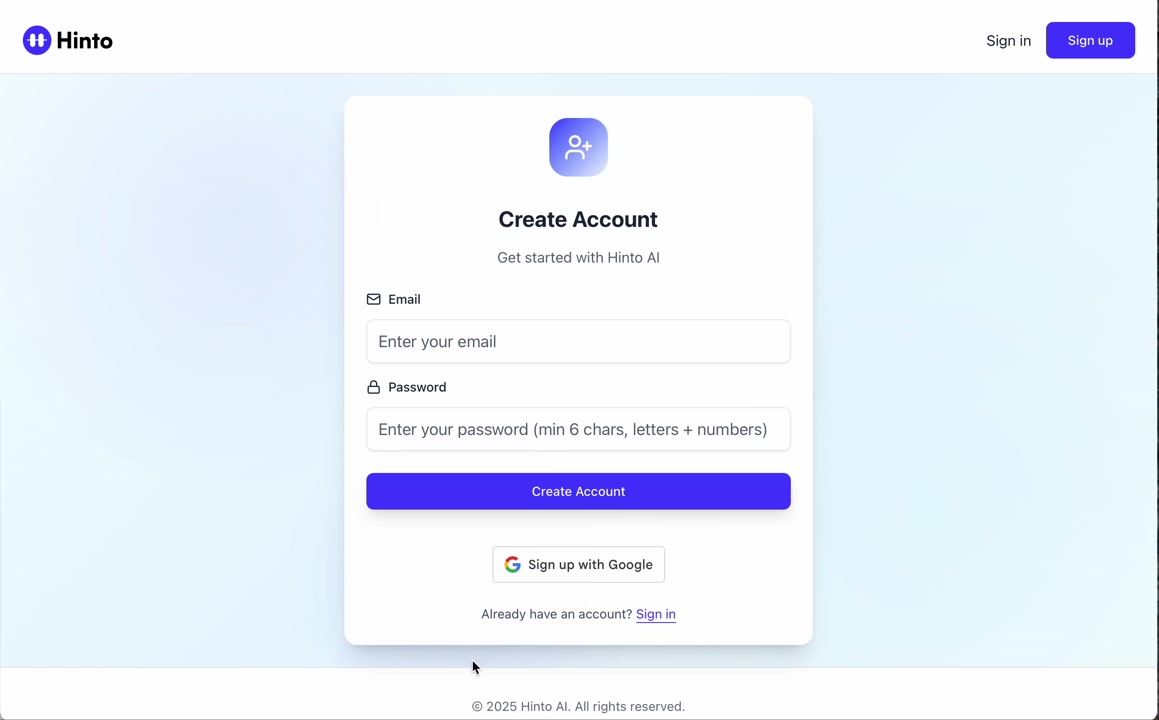
Hinto AI allows you to create an account and sign in using your existing Google account for a faster and more secure experience. This option is available on the main sign-up and sign-in pages, streamlining your access to the platform without needing to manage a separate password.
## Signing Up with Google
If you are creating a new Hinto AI account, you can use your Google credentials to get started quickly. On the **Create Account** page, you will find the option to sign up with Google.
1. Navigate to the Hinto AI sign-up page.
2. Instead of filling out the email and password fields, click the **Sign up with Google** button.
3. A new window will open, prompting you to choose a Google account. Select the account you wish to use.
4. After selecting your account, you will be automatically authenticated and redirected to your Hinto AI projects dashboard.
## Logging In with Google
Once you have created an account using Google, you can use the same method to log in for subsequent sessions. The process is similar to signing up.
1. On the Hinto AI sign-in page, click the **Sign in with Google** button.
2. If you are already logged into your Google account in your browser, you may be logged into Hinto AI automatically.
3. If not, select your Google account from the list that appears. You will then be redirected to your dashboard.
### Important Considerations
- **One Account, One Method:** If you sign up with Google, you should continue to log in with Google. An account created via Google OAuth is separate from an account created with the same email address and a password.
- **Security:** Using Google for authentic